
Managing deployments
Once you’ve finished using modal run or modal serve to iterate on your Modal
code, it’s time to deploy. A Modal deployment creates and then persists an
application and its objects, providing the following benefits:
- Repeated application function executions will be grouped under the deployment, aiding observability and usage tracking. Programmatically triggering lots of ephemeral App runs can clutter your web and CLI interfaces.
- Function calls are much faster because deployed functions are persistent and reused, not created on-demand by calls. Learn how to trigger deployed functions in Invoking deployed Functions.
- Scheduled Functions will continue scheduling separate from any local iteration you do, and will notify you on failure.
- Web Functions keep running when you close your laptop, and their URL address matches the deployment name.
Creating deployments
Deployments are created using the modal deploy command.
 % modal deploy -m whisper_pod_transcriber.main
✓ Initialized. View app page at https://modal.com/apps/ap-PYc2Tb7JrkskFUI8U5w0KG.
✓ Created objects.
├── 🔨 Created populate_podcast_metadata.
├── 🔨 Mounted /home/ubuntu/whisper_pod_transcriber at /root/whisper_pod_transcriber
├── 🔨 Created fastapi_app => https://modal-labs-whisper-pod-transcriber-fastapi-app.modal.run
├── 🔨 Mounted /home/ubuntu/whisper_pod_transcriber/whisper_frontend/dist at /assets
├── 🔨 Created search_podcast.
├── 🔨 Created refresh_index.
├── 🔨 Created transcribe_segment.
├── 🔨 Created transcribe_episode..
└── 🔨 Created fetch_episodes.
✓ App deployed! 🎉

View Deployment: https://modal.com/apps/modal-labs/whisper-pod-transcriber
Running this command on an existing deployment will redeploy the App, incrementing its version. For detail on how live deployed apps transition between versions, see the Updating deployments section.
Deployments can also be created programmatically using the app.deploy() method in Modal’s Python SDK.
Viewing deployments
Deployments can be viewed in the web UI on an App’s “Deployment History”
page, or from the command line using the modal app list command.
Deployment events on charts
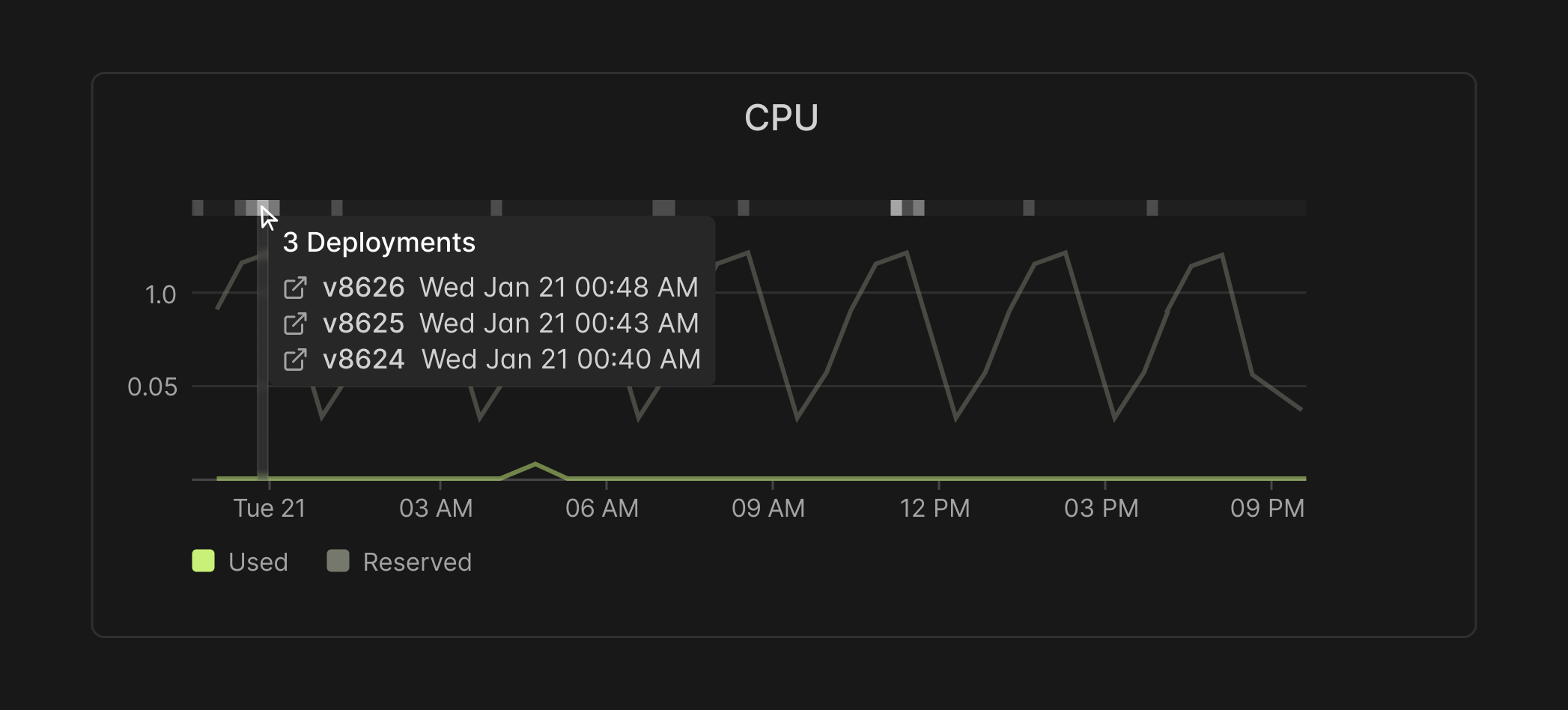
You can overlay deployment history information on your Function’s metric charts by enabling the Show Deployments toggle. Each marker represents one or more deployments that occurred within a time bucket.
Hovering over a marker shows the version number and timestamp of each deployment, plus a link to the full “Deployment History” page.
Updating deployments
A deployment can create a new App or redeploy an existing deployed App with a new version. It’s useful to understand how Modal handles the transition between versions when an App is redeployed. In general, Modal aims to support zero-downtime deployments by gradually transitioning traffic to the new version, but it is also possible to opt into a sharp cutover between versions.
If the deployment involves building new versions of the Images used by the App, the build process will need to complete successfully before any new containers are started. The existing version of the App will continue to handle inputs during this time. Errors during the build will abort the deployment with no change to the status of the App.
Deployment strategies
After the build completes, Modal will start to bring up new containers running
the latest version of the App. The exact mechanics depend on the choice of
deployment strategy, configured with --strategy in the modal deploy CLI or strategy= in the app.deploy() method.
With the default rolling strategy, existing containers will continue handling
inputs (using the previous version of the App) until new containers have
completed their cold start. Traffic will shift over to these new containers as
they come online, but old containers will not shut down until they finish
processing any inputs they were assigned.
With the opt-in recreate strategy, the transition between versions will be
more abrupt. Existing containers will be terminated as soon as the new version
is active, and inputs will queue until new containers come online (including
inputs that were running on old containers, which will be retried on new ones).
The rolling strategy avoids downtime and is recommended for any production
Apps. The recreate strategy is primarily useful during development, because
you can be certain that new containers will be used for any inputs sent after
the deployment command returns.
No-op deployments and rollovers
The App is the unit of deployment. If nothing in the App configuration has changed, the deployment command will be a no-op, and the App version will not increment. However, changes to any Function will cause all Functions to update.
It’s possible to cycle the containers serving an App without any changes to the
code or configuration by using the modal app rollover command. This may be
necessary if the App depends on a Secret or some other external resource that is
loaded at container startup and has become invalidated. A rollover event will
appear in the deployment history as a new version. As with a normal deployment,
a rollover can be performed with either a rolling or recreate strategy.
Deployment rollbacks
To quickly reset an App back to a previous version (e.g., if you discover that a
new version has a serious defect), you can perform a deployment rollback.
Rollbacks can be triggered from the Deployment History tab in the App dashboard
or using the modal app rollback CLI. Rollback deployments look like new deployments: they increment the version
number and are attributed to the user who triggered the rollback. But the App’s
Functions and metadata will be reset to their previous state independently of
your current App codebase.
Stopping deployments
Deployed apps can be stopped in the web UI by clicking the red “Stop app” button on
the App’s “Overview” page, or alternatively from the command line using the modal app stop command.
Stopping an App is a destructive action. Apps cannot be restarted from this state; a new App will need to be deployed from the same source files. Objects associated with stopped deployments will eventually be garbage collected.